What happens in the three Primetime edits?
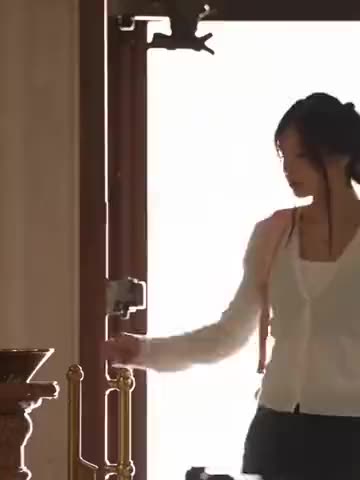
Version 1 opens on a phone conversation in teal light before picking up the pace. The edit moves through a hallway, rain and a control room. Choose this cut if you like the contrast between the stillness of the opening and the short shots that come after it. A photo of the same person follows Chris Hansen through those changes of angle and setting.
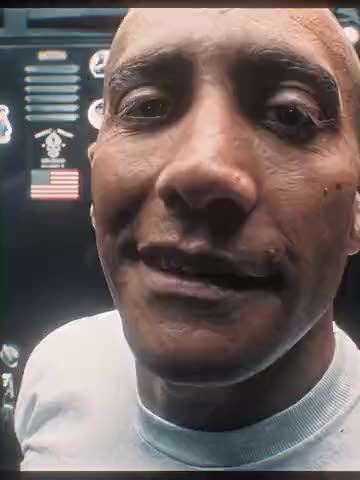
Version 2 uses a section of the longer cut by Rxny. It moves from a dark conversation and close-ups of Pattinson into a loud montage with blue and red lighting and a green hallway. The template starts within the conversation, so there’s time to see the character listening and speaking before the rhythm changes.
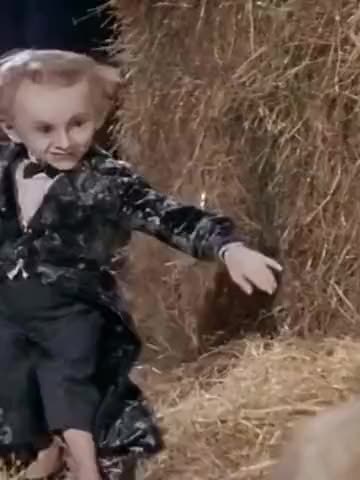
Version 3 begins with close-ups in a teal office and moves into a quick succession of Pattinson shots. Several images return as the sequence builds. You can compare the openings in the version selector after signing in. Each one uses the audio from its own source edit.
Where did the Primetime trend come from?
Primetime is the film in which Robert Pattinson plays Chris Hansen. These three videos are TikTok edits from separate accounts. The first creator describes their cut as a Primetime edit with Carti. Each template keeps the sound attached to its own cut, so preview that version if you’re choosing by music. The source posts are Cykl0psFilm, Rxny and Axion.
How to make your own Primetime edit with AI
- Open Primetime — Robert Pattinson and sign in with Telegram.
- Choose Version 1, Version 2 or Version 3. Play that clip and check its opening, cut rhythm and sound.
- Add one photo to the Chris Hansen card. It applies to Pattinson’s appearances in that cut, including when the camera returns to him after showing another person.
- Leave “Keep the original look” on to retain the clothes in the source. Turn it off if you want the outfit in your photo to guide the result.
- Review the quality and price shown in Telegram Stars before creating the full video. When it’s ready, download the MP4 or share it.
Which photo works for the Chris Hansen role?
Choose a sharp portrait with even light across both eyes and a clear outline around the chin. The edits move between shadowed close-ups and shots from farther back, so a well-lit photo gives the face a clear reference even as the lighting changes. A front view or a slight turn works well for the quiet dialogue shots. Use a photo with permission and crop out other people before uploading it.
For a change of outfit, choose a photo where the clothes are easy to see. If you keep the original look, a clear portrait is enough. The short cuts include head turns, partial profiles and changing light. Look at those moments in the result when checking likeness. The photo guide has examples for close-ups and wider shots.